Assistant jobs
- Who it’s for
- Lab owners who want the assistant to check on things while they are away.
- What it covers
- How to schedule a prompt, choose what a job may do unasked, pick registries and sites, and get notified.
- Why it exists
- Some questions are worth asking every morning. A job asks them for you, and it taps your shoulder only when it needs you.
A job is a saved prompt that the assistant runs on a schedule. Each run happens in its own chat, as you, so you can open it later and read exactly what the assistant did. Open Local AI → Assistant jobs to see yours.
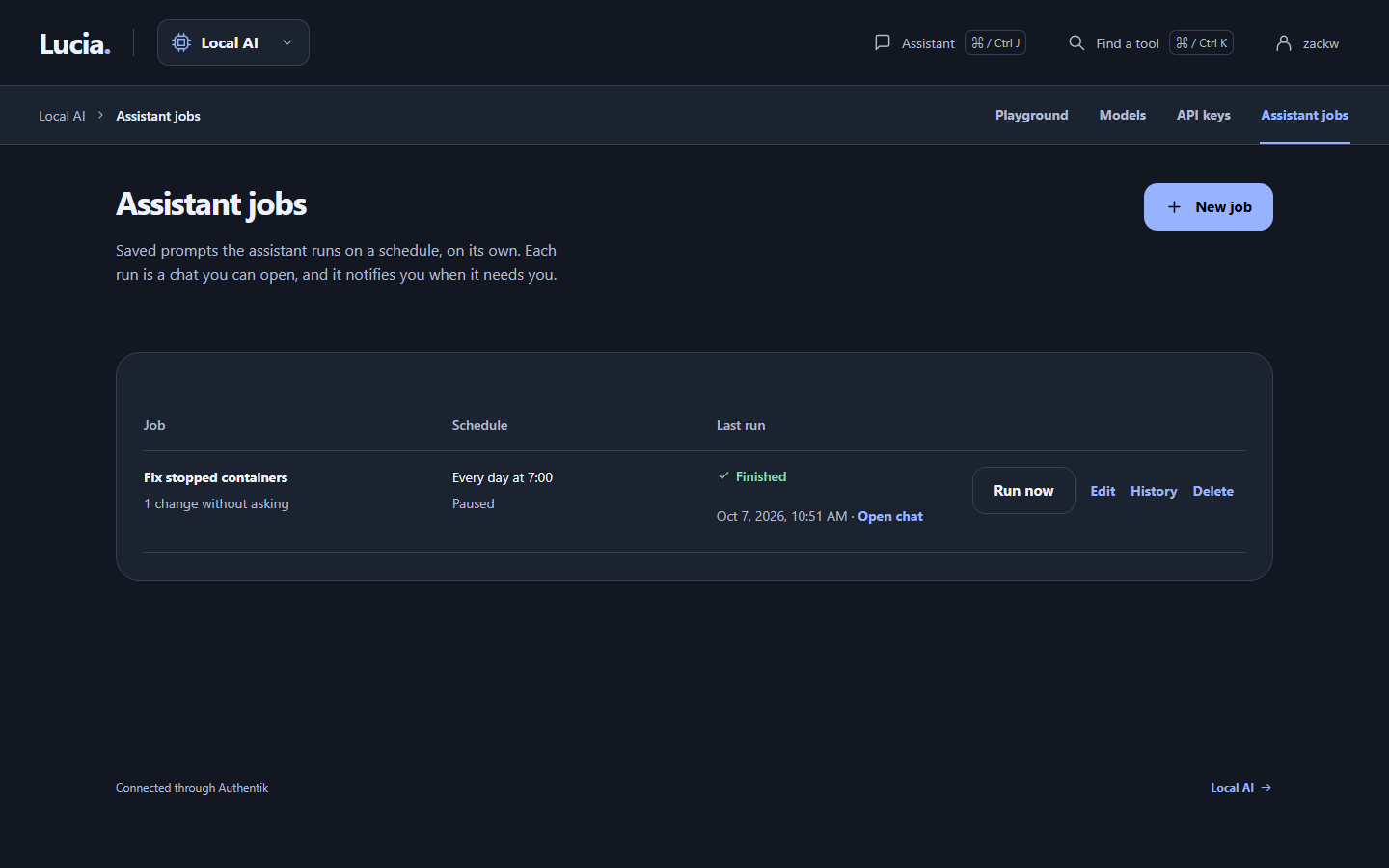
Each row shows when the job runs next and how the last run ended.
Create a job
Choose New job and fill in the three sections.
What it does.
- Name. Up to 80 characters, such as "Morning app check".
- Prompt. What you would type into the assistant. Write it the way you would ask a colleague: "Look at every app for containers that are offline but shouldn't be. Read their logs and tell me the cause. If it needs an app change, notify me instead of changing it."
- Follow-up prompts. Add up to 10 in total. They run in order in the same chat, each after the previous answer ends. If one fails or is stopped, the rest don't run.
- Model. Choose from the same list as the panel, or leave it on your default. Models that offer reasoning effort or a choice of context window show those too. A simple check is often fine on low effort and uses far fewer tokens.
When it runs. Pick a repeat: every hour, every 6 hours, every day, weekdays, once a week, or a custom schedule. Choose a time and a time zone. The page shows the next few run times, so you can see you got it right.
For a custom schedule, type a cron expression. That's five fields: minute, hour, day of the month, month and day of the week.
30 6 * * 1-5     weekdays at 06:30 in the job's time zone
0 3 * * 0        Sundays at 03:00
Untick Run on this schedule to pause a job. You can still start it by hand with Run now.
What it may do without asking. See the next section.
Choose what a job may do unasked
A job runs while nobody watches, so it can't wait for you the way a chat can. Anything you haven't allowed waits for approval (more on that below). What you allow here applies to this job only, on top of whatever Settings → Assistant already allows.
- Changes. Ordinary changes such as backing up an app or restarting it.
- Risky changes. Deleting, restoring a backup, publishing, installing updates, restarting a server and running a command. Allow one only when the job's prompts truly need it.
- Sites it may read. Extra host names for this job, one per line.
- Container registries it may query. A registry is where container images are stored. Allowing one lets the job ask it for an image's tags, to see whether a newer version exists. Docker Hub, GitHub, GitLab, Quay, Google and Microsoft are in the list. Registries you added under Settings → Registries appear too.
- Skills it may use. Pick the skills this job can read and run scripts from. Leave it empty for none, choose specific skills, or choose All enabled skills. Scripts still follow each skill's approval rules. See Assistant skills.
A risky change allowed for a job runs with nobody checking it. The editor warns you in these words: "Nobody checks these before they happen." Think twice before you allow a command to run on a schedule, and prefer to leave it off for every job.
When a job needs you
If a job reaches something it isn't allowed to do, it doesn't skip the step and it doesn't guess. It pauses and sends you a notification. Tap it to open the job's chat and see the approval card.
- Approve lets that one call run.
- Decline… refuses it.
- Approve, and let this job … without asking approves and adds the permission to the job. For a risky change you get one more screen first, asking you to confirm.
The job waits 30 minutes. If you don't answer, that step doesn't run. The run shows Approval expired, and the notification says the job skipped a step.
Notifications
Go to Settings → Notifications and choose Turn on notifications for the device you're using. The page lists every device you've added. You can send a test, rename a device or remove it, and you can add up to 20.
Lucia notifies you when a job:
- needs your approval;
- fails, or skips a step because nobody answered;
- has something to tell you. The assistant sends this itself when it finds something you must know.
Tapping a notification opens the chat it came from.
On iPhone and iPad, add Lucia to your Home Screen and open it from there first. Safari only allows notifications for Home Screen apps.
Notifications need the portal to be served over HTTPS from a name your devices trust. In practice that means your domain is set up, or your devices trust Lucia's own certificate. See Your domain. Notifications travel through your browser maker's own push service, so you need no extra account.
Read what a job did
Choose History on a job to see its last runs. Lucia keeps the newest 50 for each job. Each run is a normal chat that you can open and read.
| Status | Meaning |
|---|---|
| Running | The job is working now. |
| Finished | Every prompt ran to the end. |
| Stopped | Someone stopped the chat. |
| Failed | A prompt failed. The row says why. If Lucia restarted mid-run, it shows as failed too. |
| Approval expired | The job reached something it wasn't allowed to do, and you didn't answer in 30 minutes. |
A job that is still running when its next time comes round skips that turn. You can keep up to 50 jobs. Deleting a job leaves its old chats in your chat history.
Limits worth knowing
- A job acts as whoever last saved it. Changes it makes in Lucia's history appear under that person's name, with "via assistant" after it.
- Lucia checks the clock once a minute, so a job starts within a minute of its time.
- Jobs are for owners only.
For how the assistant works in a chat, see Assistant.