Assistant
- Who it’s for
- Lab owners. Only owners can use the assistant.
- What it covers
- How to ask the assistant things, what its approval cards mean, how Plan and Execute differ, and where its limits are.
- Why it exists
- Most homelab trouble starts as a question like 'why is this app down?'. The assistant checks the logs and the servers first, so you start with an answer instead of a guess.
The assistant lives in a side panel of the Lucia web page. You type a question in plain language, and it looks at your servers, apps, logs, backups, DNS and network devices before it answers. When a fix needs a change, it proposes one and waits for you.
It works through a fixed set of tools that Lucia gives it. It has no free-roaming shell, and it can't touch anything those tools don't cover.
Ask it something
Open the panel and type. These work well:
- "Why is Jellyfin restarting?"
- "Which servers have updates waiting?"
- "Is my Plex backup recent?"
- "Does
media.example.comresolve to the right address?" - "Is there a newer version of the Immich images?"
It reads first and then answers. Short, specific questions get the best results. If it needs a decision only you can make, it asks you right in the chat, often with a few buttons to pick from.
Each chat is saved. Open the history icon in the panel to come back to an old one. A chat keeps running if you close the browser tab, and when you return the panel picks it up where it was.
Pick a model
The model menu in the box where you type has up to three groups:
| Group | What you need |
|---|---|
| GitHub Copilot | A GitHub account with Copilot. The panel offers Sign in with GitHub and shows a short code to type at github.com. |
| LiteLLM | The LiteLLM app installed from the catalog. |
| Local AI | A model loaded on the Spark, or the Local AI app on one of your servers. See Local AI. |
Only the Copilot group needs the GitHub sign-in. If a group has no models, the menu says why: not installed, no model loaded, or not answering.
Plan or Execute
One button in the box switches between two modes, and its label shows the current one.
- Execute carries out changes, asking you first unless you have allowed that change.
- Plan looks things up and writes a plan. It changes nothing at all. Any tool that would change something is refused, and the assistant says so.
Plan is a good first move when you aren't sure what you want. Read the plan, then switch to Execute and tell it to go ahead.
Approval cards
When the assistant wants to do something that needs your say-so, the chat shows a card. It tells you what is about to happen, shows the exact details it will use, and often adds a line about the impact, such as "Every app on this server is offline for a few minutes while it restarts."
- Approve lets this one call run.
- Decline… refuses it. You can type a reason, and the assistant reads it and adjusts.
- A third link, such as "Approve, and let it read docs.docker.com for the rest of this chat", approves and remembers the answer. It appears for ordinary changes and web pages. It lasts until you delete the chat, or until Lucia restarts.
Deleting an app, restoring a backup, publishing an app on the internet (or taking it off), installing updates, restarting a server and running a command on a server always ask in a chat. Nothing you tick in settings changes that.
The assistant waits 30 minutes for an answer. After that the call is declined and it moves on.
A command card means the assistant will run a command as root on a server. Read the command before you approve it. The card says it can change anything on that server, and that is accurate.
Choose what runs without asking
Open Settings → Assistant. Two lists live there:
- Changes it may make without asking. Tick a change you trust, such as backing an app up, and it runs without a card.
- Sites it may read without asking. Host names like
docs.docker.com, one per line. For any other site, it asks first.
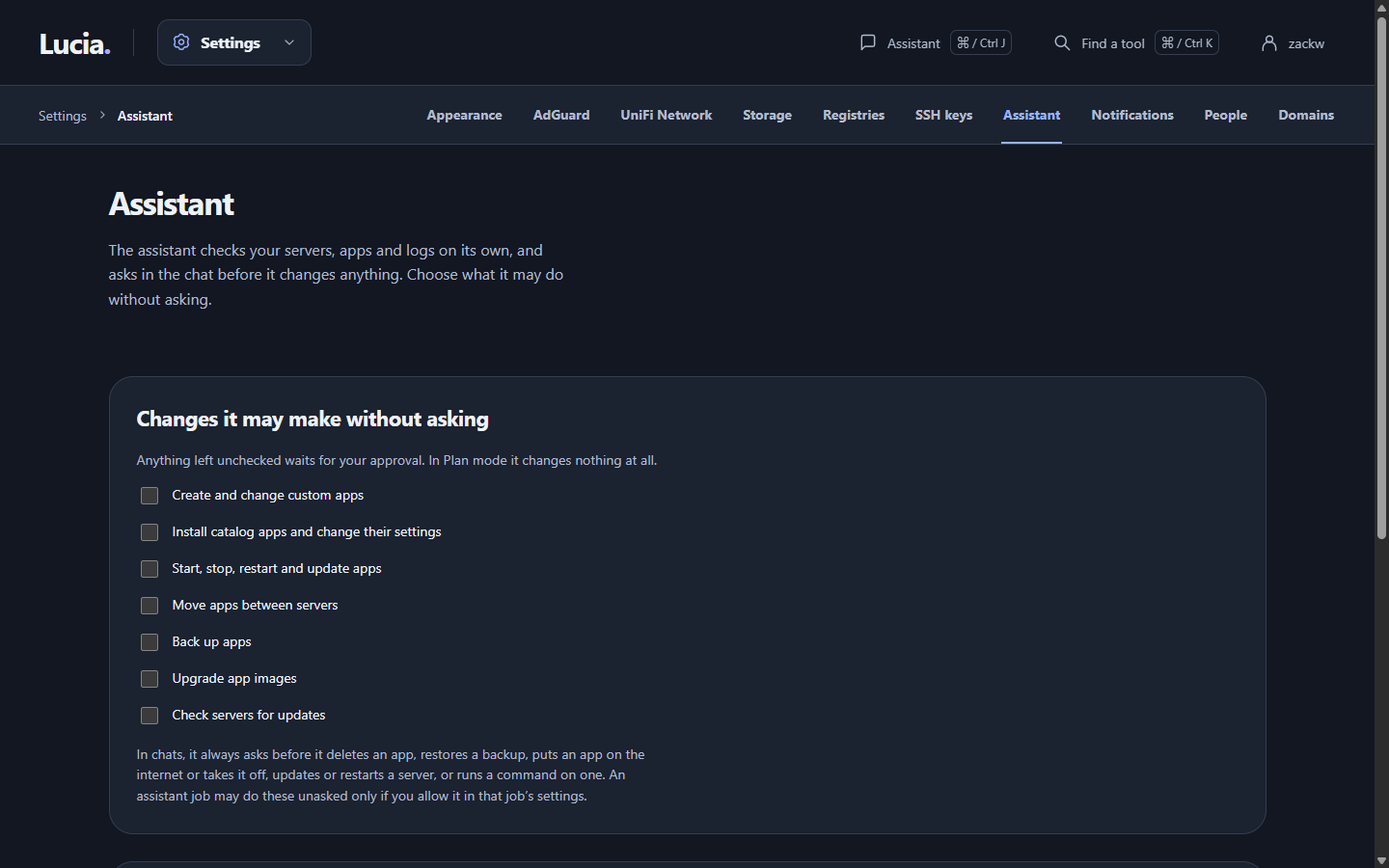
Standing permissions live in Settings → Assistant. Anything you leave unticked waits for a card.
Start with nothing ticked. Tick a change after you have approved it a few times and you know it is safe for your lab.
Reasoning effort and the context donut
Under the box where you type are a few small controls.
Reasoning effort. A small button beside the model menu shows how hard the model thinks before it answers. 0 is none, S is low, M is medium, L is high, XL is extra high, and A means the model's own default. Lower effort answers faster and costs fewer tokens (a token is a small piece of text, which is how models count their work). Higher effort suits a tangled problem. Models that don't offer a choice don't show the button.
The donut. The small ring shows how full the model's memory for this chat is. A chat has a limit, called the context window. Click the ring for the numbers. Near the limit, start a new chat for a new topic. The ring changes color past 70% and again past 90%. Some Copilot models offer a standard and a long window, and the same popover lets you choose.
Your choices are remembered for each model on this browser.
Your own models. LiteLLM and Local AI models don't announce which efforts they accept. Under Settings → Assistant → Reasoning for your own models, tick the ones each model handles: Disabled, Low, Medium, High and Extra high. Disabled turns thinking off for models that support that.
What it can do
| It can | Examples |
|---|---|
| Look at things | Servers and their agents, containers and logs, apps, the app catalog, storage, backups, DNS, network devices, the Spark's health and updates |
| Read public web pages | Documentation, release notes, raw files on GitHub |
| Check image versions | Ask a container registry whether an image has a newer tag |
| Make changes (asks unless allowed) | Install a catalog app, save a custom app, start, stop, restart, update or move an app, run a backup, check servers for updates |
| Make risky changes (always asks in chat) | Delete an app, restore a backup, publish or unpublish an app, install updates, restart a server, update a server's agent, run a command |
| Notify you | Send a message to your phone or browser |
| Read skills | Load a skill's instructions and its files, and reload the list of enabled skills |
| Run skill scripts | Run a script from a skill on a node, the Spark or the sandbox. The skill's tier decides whether it asks. |
What it can't do
- It can't see your passwords or keys. If an app needs one, the assistant asks and a card shows a password box. You type it, Lucia saves it in the app's settings, and the assistant only learns that it was saved. Don't paste secrets into the chat.
- It can't read your own network with the web tool. The web tool reaches public sites only. For your servers it uses the lab tools.
- It can't go on forever. One turn makes at most 50 tool calls, and anything a tool returns is cut at about 48 KB. If it runs out, it summarizes and asks how to go on.
- It can't use a shell of its own. Everything goes through Lucia's tools, and Lucia decides on each call.
- It can be wrong. It reads logs well and still misreads them sometimes. Treat a proposed fix like advice from a capable colleague.
When something looks wrong
| You see | What to do |
|---|---|
| "Sign in with GitHub" in the model menu | Click it, then type the code on github.com. If GitHub refuses, check that the account has Copilot. |
| A model group with a reason instead of models | Read the reason. Install or start the app it names, then reopen the menu. |
| "This chat is still answering" | Wait for it, or press stop, then send again. |
| A card you already answered | It was answered in another window, or the chat moved on. Reload the panel. |
| "The owner didn't answer within 30 minutes" | Ask again. Lucia declined the call because nobody answered. |
To run a prompt on a schedule without opening the panel, see Assistant jobs. Skills are small folders of instructions and scripts that teach the assistant a task. See Assistant skills. The machine-side details are in deploying the assistant.