Your first hour
- Who it’s for
- You, right after the setup app says Lucia is ready.
- What it covers
- A suggested order for connecting your network, your domain, your first apps and the assistant.
- Why it exists
- Some steps need others first. Your domain needs AdGuard, for example. Doing them in this order means you never undo anything.
You are signed in and looking at an empty Home page. Almost everything left is optional, but the order matters. Every step is a page inside Lucia. If you lose your way, press Ctrl+K (Cmd+K on a Mac) and type what you want to find.
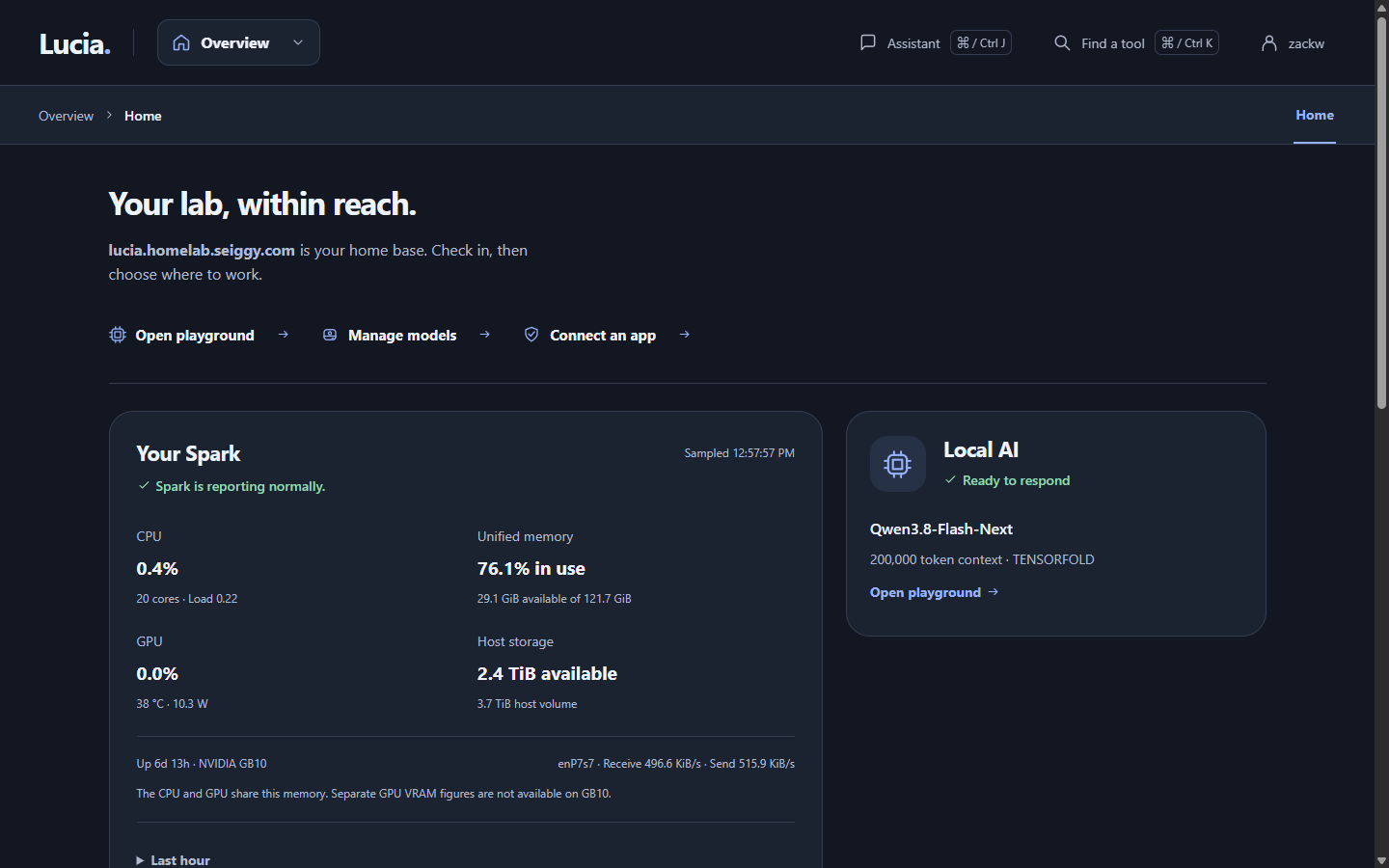
Home, before you have added anything.
1. Trust Lucia's certificate authority
If you skipped the trust approval in the setup app, do it on each computer you use to open Lucia. Until then your browser shows a warning on every Lucia page. The warning is expected, because the certificates come from Lucia's own authority and your browser has not met it yet.
The setup app's Ready screen has the button for this. On a computer without the app, ask whoever built it to export the certificate, and follow Install from source.
2. Connect AdGuard Home
Go to Settings → AdGuard. AdGuard Home is a program that answers "what address is this name?" for your network. If you already run one, enter its address and an account. Lucia uses it to add local names for its own pages and to check that they resolve.
Do this before your domain. Domain setup will not start without it.
3. Connect a domain
Go to Settings → Domains. You need a domain whose DNS is managed by Cloudflare, plus a Cloudflare token limited to that one domain with DNS Write and Zone Read permissions. Lucia walks you through creating the token, picking names like lucia.lab.example.com, reviewing every change and getting a certificate. Nothing changes until you approve the review.
Lucia never publishes your private addresses on the public internet. See Your domain.
If this page says activation is blocked, the loginctl enable-linger command from Requirements was not run. Run it on the Spark and try again.
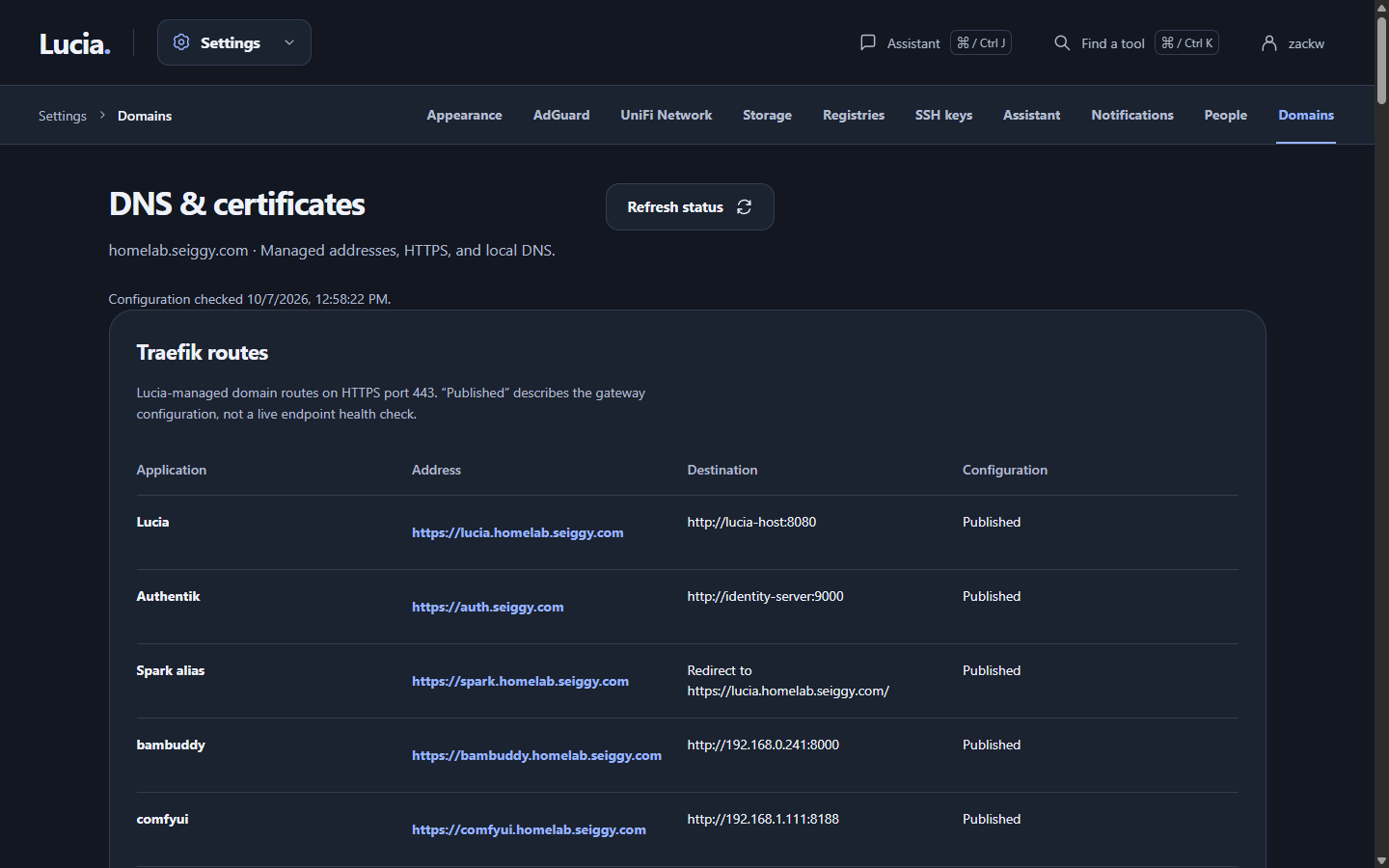
The Domains page.
4. Connect UniFi
Go to Settings → UniFi Network and add an API key. Lucia then reserves addresses for the Spark and for each server you add, so they keep the same address. It never changes anything else.
If you plan to install servers from the network, this is also the moment to turn on Network Boot in the UniFi console. See Requirements and Network.
5. Add your SSH keys
Go to Settings → SSH keys. Paste your public keys, or import them from a GitHub account. A public key is the half you can share. It lets you log in to your servers without a password.
6. Add storage
Go to Settings → Storage to add network shares from your NAS. Lucia mounts each share at the same path on every server. It only mounts them and never changes anything on the NAS.
Later, under Apps → Backups, you pick one share to hold the nightly app backups. If your apps pull from a private container registry, add its login under Settings → Registries.
7. Bring in servers
Open Devices and start discovery. Turn on a machine so that it starts from the network, then approve it in Lucia. Approving asks you to pick a disk and type ERASE, because Lucia wipes every internal disk in that machine.
On a new install, Devices may say "Discovery is ready. Installation is not." That is Lucia holding back until its installer files and certificates are marked ready. See Adding a server.
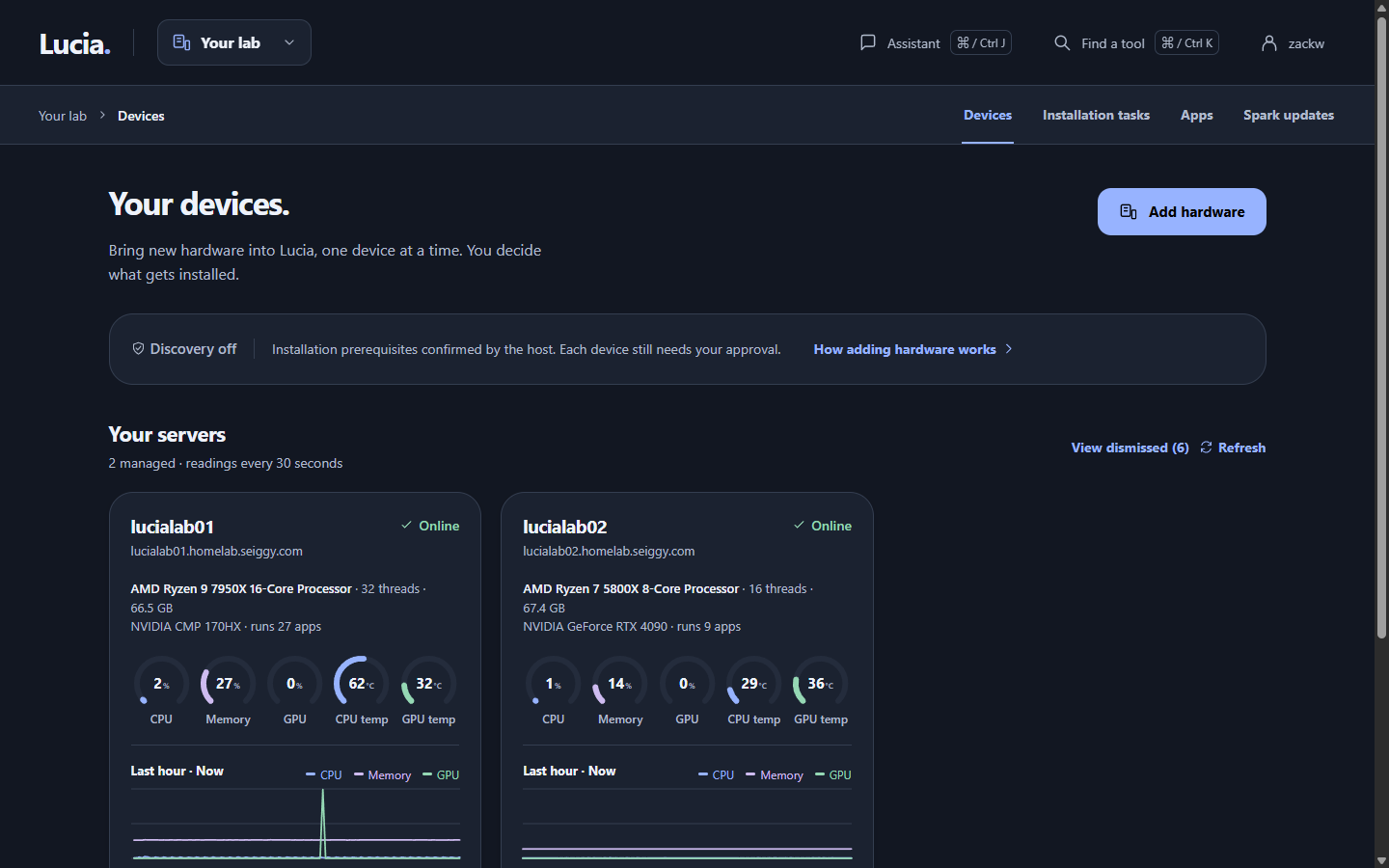
The Devices page.
8. Install your first apps
Open Apps. Two are worth having early:
- AdGuard Home runs a copy on every server, each with its own address, and keeps them in sync. Point your UniFi DNS setting at those addresses yourself.
- Observability adds charts and logs for the Spark and your servers.
Everything else can wait until you want it. See Apps and Monitoring.
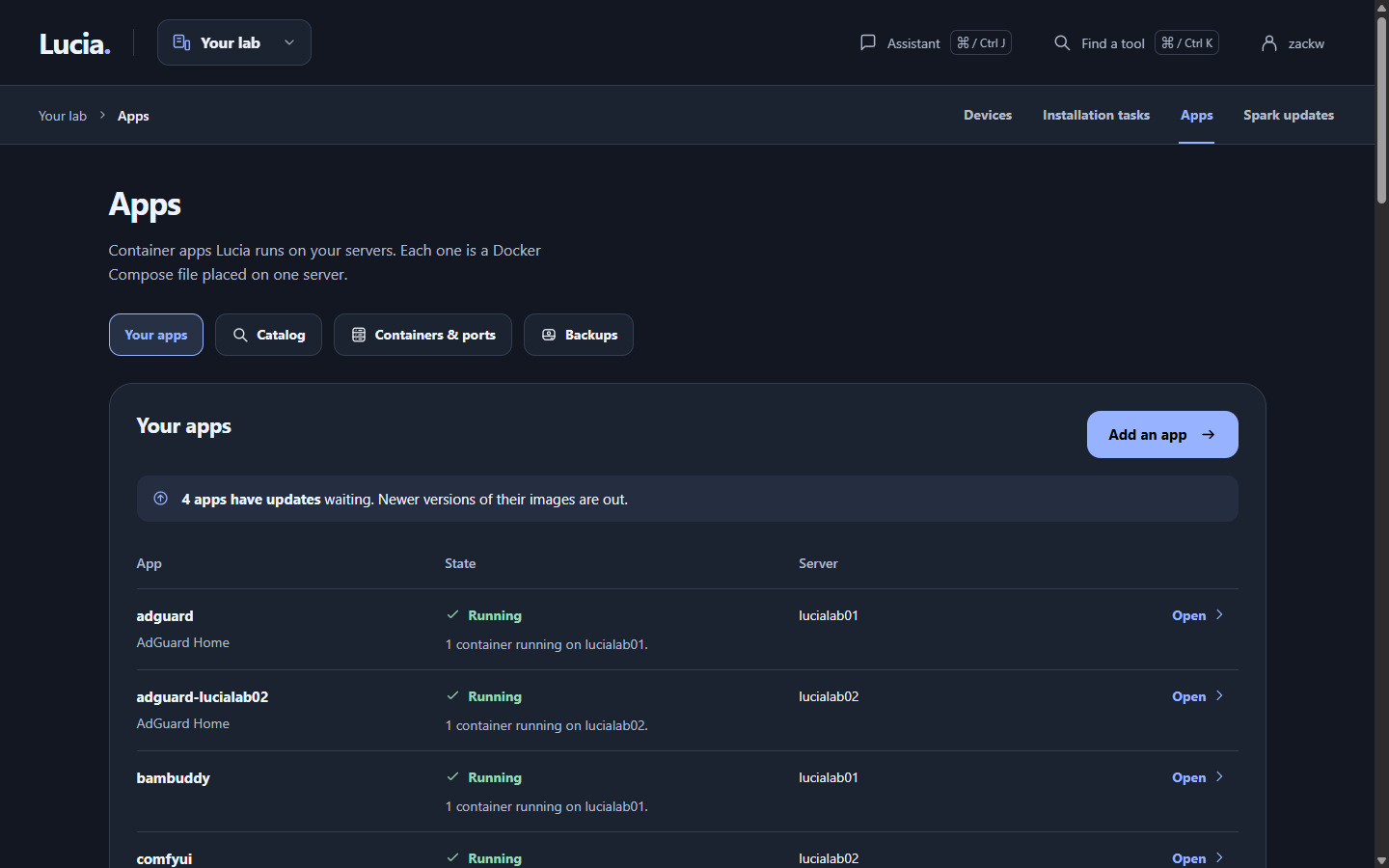
The Apps page.
9. Set up the assistant
Open the assistant panel and pick a model from its menu. The menu lists GitHub Copilot models (these need a GitHub sign-in and your Copilot plan), models from a LiteLLM app, and the models running on your Spark.
Then go to Settings → Assistant and decide which changes it may make without asking, and which public sites it may read without asking. Looking at things is always allowed. Deleting an app, restoring a backup, putting an app on the internet, updating or restarting a server, and running a command always ask first. See Assistant.
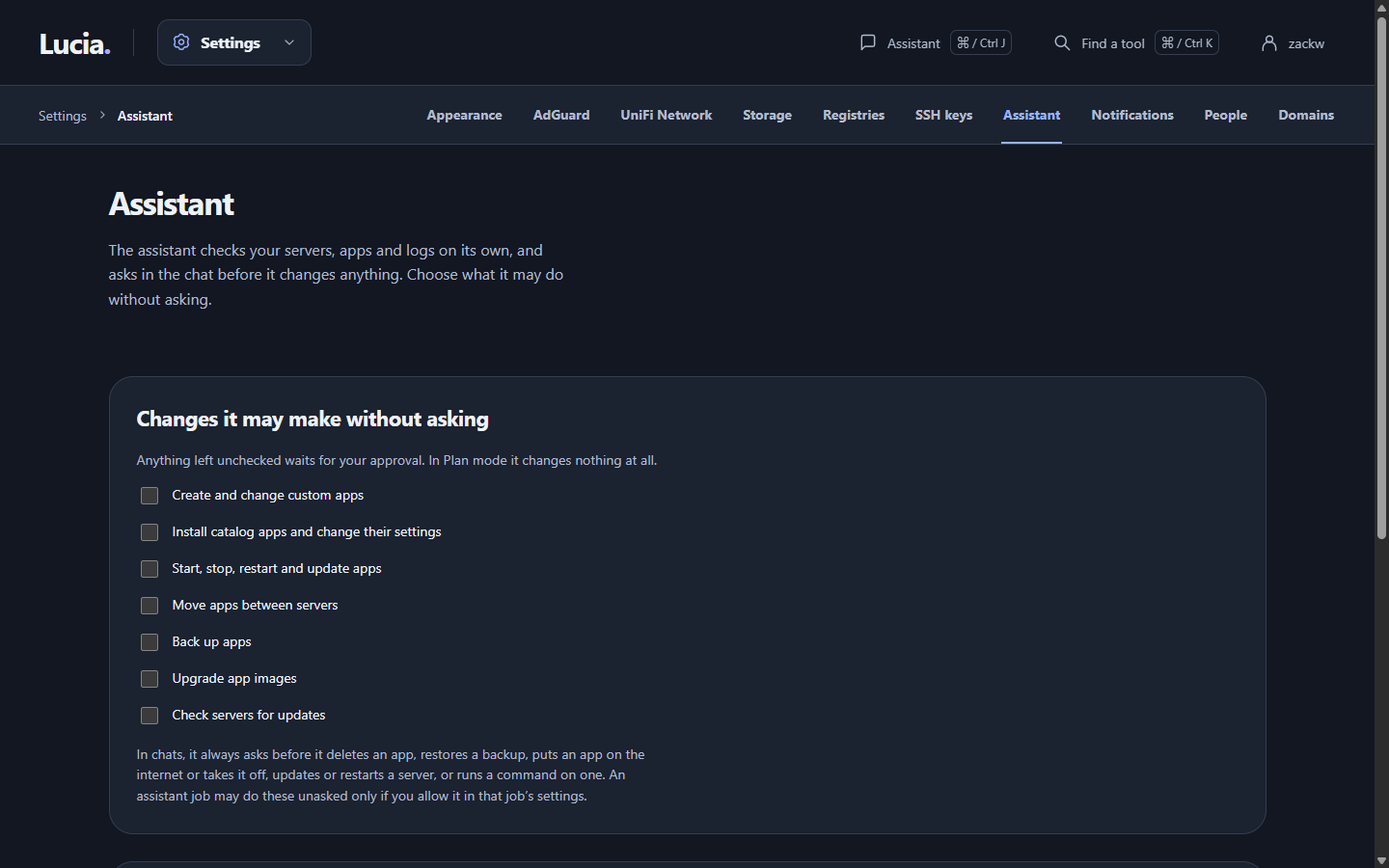
Assistant settings.
10. Turn on notifications
Go to Settings → Notifications, add this browser and send a test. Lucia sends a push message when a job needs your approval or something fails. You can register up to 20 devices.
11. Schedule one job
A good first job runs on weekday mornings: "check server health and recent app logs, and notify me only if something is wrong." Give it a schedule, run it once by hand to see what it does, then leave it. See Assistant jobs.
12. Install the Spark update helper
Go to Updates. If the page shows a command starting with sudo, run it on the Spark once. After that you can check for and install the Spark's own updates from the page. See Updates.
That is the hour. The goal from here is that you rarely need to log in at all.