Local AI
- Who it’s for
- Anyone in the household can use the Playground. Owners manage models and keys.
- What it covers
- Trying a model, adding and loading one, connecting other apps with an API key, and what to do when something will not load.
- Why it exists
- Your Spark has a powerful graphics chip and 128 GB of memory. Local AI puts that to work so your questions and your apps' questions stay inside your home.
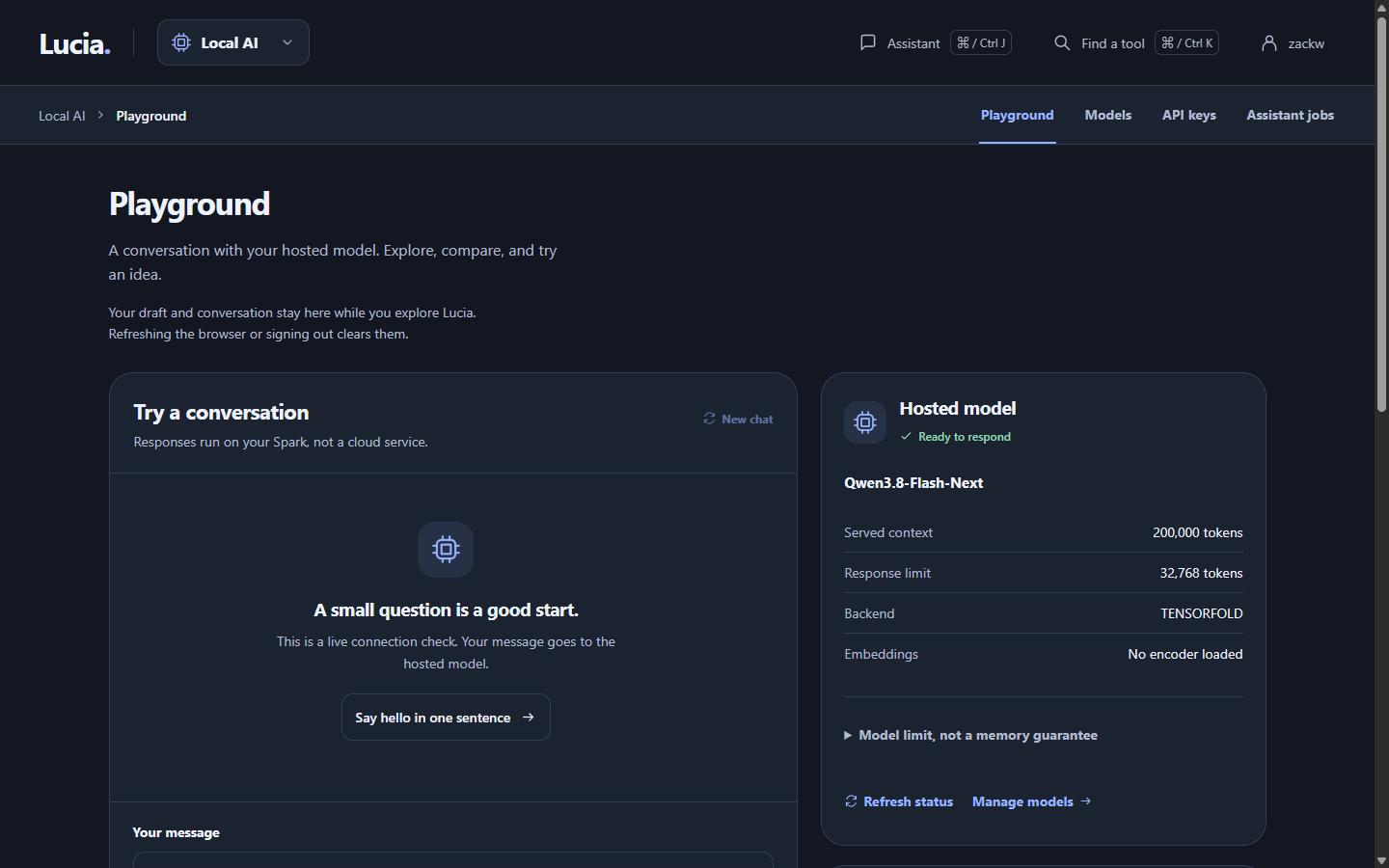
The Playground is a chat with whatever model is loaded.
Four words first
- A model is the file that holds what an AI has learned. Bigger models usually answer better and need more memory.
- An LLM (large language model) is the kind you chat with. An embedding model is a smaller helper that turns text into numbers so apps can search by meaning. Lucia keeps one of each loaded at a time.
- Context is how much text the model can hold in mind at once, counted in tokens, roughly three quarters of a word each. A bigger context needs more memory.
- Loaded means the model is in memory and ready to answer. Installed means the file is on disk. You can have many installed and one of each kind loaded.
Try it: the Playground
Open Local AI → Playground. Type a message and press Send message, or use Ctrl+Enter (⌘+Enter on a Mac). The answer streams in as the model writes it. The answer is computed on your Spark and does not go to a cloud service.
The Playground works for any signed-in person, not only owners. The conversation lives in your browser tab. Refreshing the page or signing out clears it, and New chat starts over.
The panel on the right shows the loaded model, its served context and its response limit. If it says No chat model is loaded, an owner needs to load one. See below.
Add a model
Owners only. Open Local AI → Models, then Find & download.
- Search by name, or paste a Hugging Face address such as
owner/model-nameand press Open. Hugging Face is a public website where people share models. - Pick one of the variants that Lucia lists. Lucia only offers files it can run: a single GGUF file for chat, or a sentence-encoder for embeddings. Smaller numbers like Q4 mean a smaller, faster, slightly less accurate file.
- Lucia shows an estimate of how much context will fit. Read it, then tick I understand that this model/quantization has not been qualified for my host. Lucia has only tested a few models on the Spark, so this is an honest warning, not a blocker.
- Press Download selected model. A progress bar shows the transfer. You can leave the page.
Downloads can be cancelled, and a failed or interrupted one has a Retry button that carries on where it stopped. Lucia queues up to 16 downloads.
Some models are gated: Hugging Face wants you to accept terms first. Make a read token on your Hugging Face account, open Hugging Face connection on the Models page and press Save access token. Lucia stores it encrypted on your Spark and never shows it back.
Load a model
An installed model does nothing until you load it.
- On Installed models, press Context & load next to it.
- Lucia shows where the memory goes: the model itself, space kept for the system, and how many tokens of context are left over. Move the Context to serve slider. It starts at 8,192 tokens and stops at the most your Spark can hold.
- Press Load selected model and confirm. Loading a big model takes a minute or more.
Loaded now at the top of the page shows the current LLM and embedding model. Unload frees the memory. Loading a new LLM replaces the old one, and the embedding model is not touched.
Lucia checks every load and refuses one that would not fit, with a message such as "The model does not fit". Pick a smaller context, a smaller file, or unload the other model.
Delete removes the files from disk. You would have to download them again.
Connect another app
Apps that speak the OpenAI format, such as Home Assistant add-ons or chat front ends, can use your Spark.
- Open Local AI → API keys and press New API key.
- Give it a name you will recognise, for example the app's name. Add an expiry date if you want one.
- Copy the key now. It is shown only once, and Lucia keeps only a fingerprint of it.
- In the app, set the base URL shown under Connect another app on the Playground, and the key. The model name is the one the Playground shows under Hosted model.
A key can use Local AI and nothing else. It cannot manage your lab. Revoke a key any time and the app loses access on its next request. Make a separate key for each app, so you can revoke one without breaking the rest.
Spark recipe: a larger model
On Spark setups with the model service installed, Models shows a Spark recipe card for Qwen3.8-Flash-Next. It is a big model that gets nearly all of the Spark's memory.
- Start unloads Lucia's own models first, then downloads about 125 GB the first time and loads for a few minutes.
- While it runs, apps ask for it by the name
Qwen3.8-Flash-Next, through the same base URL and key. - Stop cuts off any answer in progress. Lucia then loads its own models again.
Do not start it while you are mid-conversation in the Playground. Your own models are off until you stop it.
Local AI on a server
If a managed server has its own NVIDIA graphics card, you can install the Local AI app on it from Apps and manage its models from the same Models page. See Apps.
Some models need a newer vLLM than the stable one. On Models, these show a Needs vLLM nightly label. Pressing Serve asks you to confirm, then switches the app's vLLM image to nightly. The nightly image only runs on servers with CUDA 13. The Weight precision choice in the app settings can use FP8 on newer graphics cards (compute 8.9 or newer). Leave it on none if you are unsure. GPU memory is how much of the card vLLM takes when it starts, 90% by default. If another app such as ComfyUI is using the same card, vLLM stops with a "Free memory on device" error. Lower this setting until it fits in what's free.
When updates pause Local AI
Platform updates on the Spark, such as a new graphics driver, unload your models first so nothing is using the driver while it changes. You will see Local AI is paused on Spark updates, and apps get a "no model loaded" error. Lucia reloads the models when the updates finish. See Spark updates.
When something looks wrong
| You see | What to do |
|---|---|
| No chat model is loaded | Open Models, press Context & load on an installed model, then Load selected model. |
| "The model does not fit after voice, OS, services, and runtime reservations." | Lower the context, choose a smaller file, or unload the other model. |
| A download shows Failed or Interrupted | Press Retry. If it fails again, check your Hugging Face token for gated models and that the Spark has free disk space. See Spark health. |
| "Startup model loading failed" | Lucia could not reload the model it had before a restart. Load one by hand on Models. |
| An app gets an authentication error | The key is missing, revoked or expired. Make a new one. |
| An app says the model is not found | Use the exact model name from the Playground's Hosted model panel. |
| Everything is slow | A bigger context and a bigger model are slower. Try a smaller one. |
| "The vLLM nightly image is built for CUDA 13 only" | Choose the stable vLLM image, or serve the model on a server with CUDA 13. |
| "Free memory on device ... is less than desired GPU memory utilization" | Another app is using the card. Lower GPU memory in the app settings, or stop the other app. |
| "FP8 needs a GPU with compute 8.9 or newer" | Set Weight precision back to none in the app settings. |
For operators and developers
How memory is planned, where files live and how requests flow: Local AI (deploy) and Local AI (code).