Spark health
- Who it’s for
- Lucia owners. Other signed-in people do not see the card.
- What it covers
- What the Your Spark card on Home measures, what its status messages mean, and what to do about the ones that ask for attention.
- Why it exists
- Your Spark is the one machine everything else leans on. A full disk or a full memory shows up here before it shows up as a broken app.
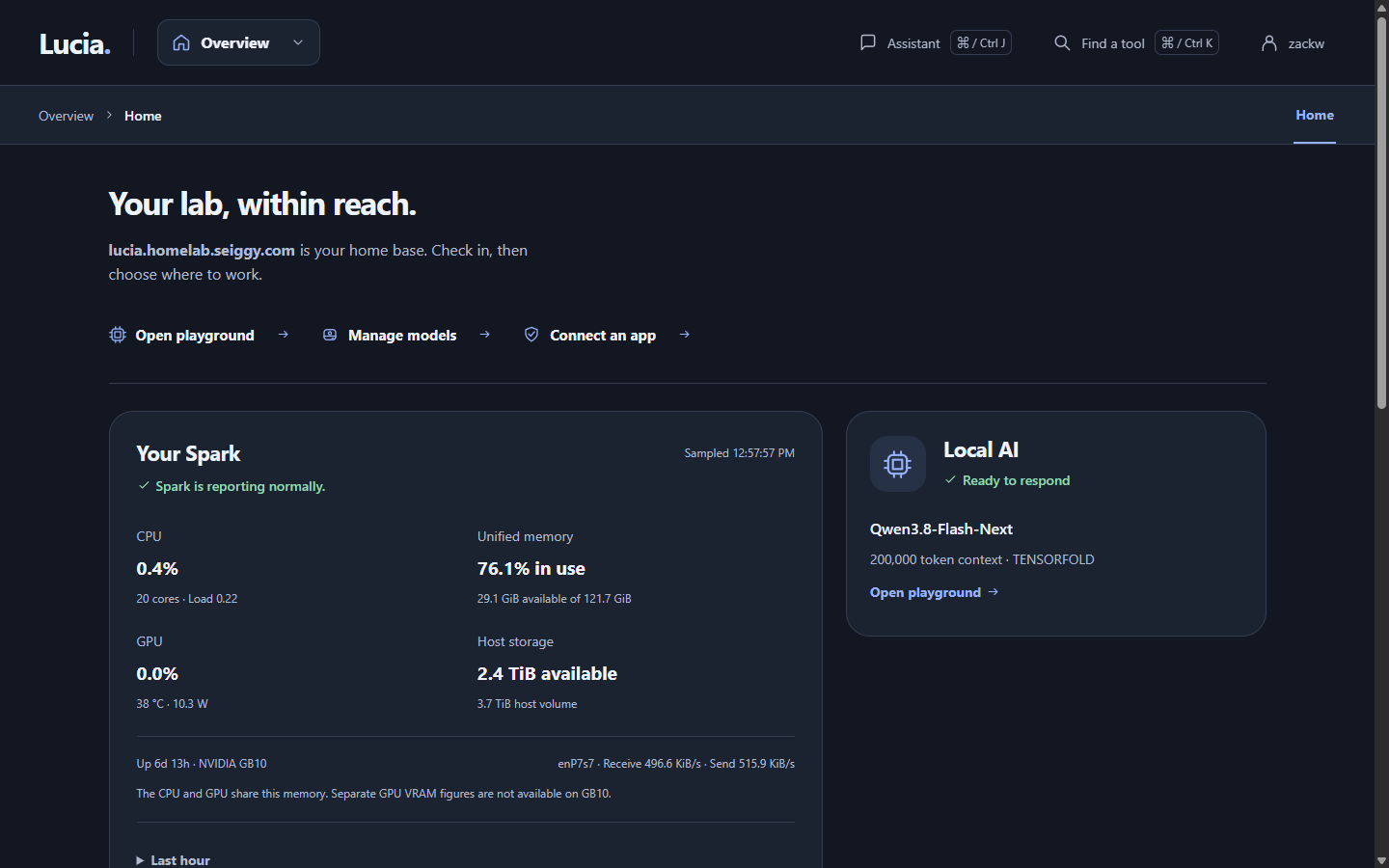
The Your Spark card sits on Home.
Where to find it
Open Home. The Your Spark card sits in the main area, beside the Local AI card. You do not install or switch anything on. The Spark measures itself, and the card fills in a few seconds after Lucia starts.
What the numbers mean
| Reading | What it tells you |
|---|---|
| CPU | How busy the processor is, as a percentage, with the number of cores and the load. Load is a rough count of how many jobs are waiting for a turn. Below the number of cores is comfortable. |
| Unified memory | How much memory is in use. On the Spark the processor and the graphics chip share one pool, so this one number covers both. Lucia cannot show a separate graphics memory figure, because the chip does not report one. |
| GPU | How busy the graphics chip is, its temperature and the power it draws. Local AI is what usually moves this. |
| Host storage | Free space on the disk that holds Lucia's data, your downloaded models and your apps' files. |
| Below the readings | How long the Spark has been up, which graphics chip it has, and the network traffic on its main connection. |
A reading that says Measuring… is waiting for a second sample. Speeds and percentages need two points in time to work out, so they appear after about ten seconds.
The card refreshes every 10 seconds while the page is open. It pauses when you switch to another browser tab.
The last hour
Open Last hour on the card to see small charts of CPU, memory and GPU. A gap means no reading was available at that moment. Lucia leaves the gap empty rather than draw a guess.
The hour is kept in memory. When Lucia's host restarts, the history starts again. For longer charts, install the Observability app. See Monitoring.
Status messages
| The card says | What it means | What to do |
|---|---|---|
| Spark is reporting normally. | Everything is being read and nothing is low. | Nothing. |
| Waiting for the first host readings. | Lucia just started. | Wait a few seconds. |
| Some host readings are unavailable. | One reading, often a GPU sensor, is not coming through. The rest are fine. The card names what is missing. | Usually nothing. The GPU on the Spark does not report every sensor. |
| The host volume has less than 5% space available. | The disk is nearly full. | Delete models you no longer use on Local AI → Models, or remove apps you do not need. |
| The host has less than 3% memory available. | Memory is nearly all in use. | Unload a model on Local AI → Models, or stop an app you are not using. |
| The latest host readings are out of date. | Readings stopped arriving for over 30 seconds. | Wait a moment and press Try again. If it stays, Lucia's host may have restarted or be busy. |
| No host readings are available from the last hour. | Nothing has been read for an hour. | Check that Lucia is running. |
| Spark monitoring is not configured. | Monitoring was left off for this install. | An installation from the standard installer has it on. If you built Lucia yourself, see Spark telemetry. |
| Connection needs attention | Your browser could not reach Lucia. The values shown are the last good ones. | Press Try again. |
Why does memory look full?
A model that stays loaded keeps its memory, on purpose, so answers come back quickly. A large one can use around 30 GB of the Spark's 128 GB. That is normal, and the card only turns to Attention when under 3% is left. To get memory back, unload the model on Local AI → Models. See Local AI.
Next
- Spark updates for installing updates and restarts.
- Lab map shows the Spark among the rest of your network.
- Where the numbers come from: Spark telemetry.