Spark updates
- Who it’s for
- Lucia owners. The page is hidden from everyone else.
- What it covers
- How to check for updates on the Spark, install the everyday ones, handle the risky ones carefully, schedule a window, and restart when it is needed.
- Why it exists
- Your Spark runs Lucia, your models and your apps. An update that swaps its graphics driver under a running model is the kind of thing you want to choose the moment for.
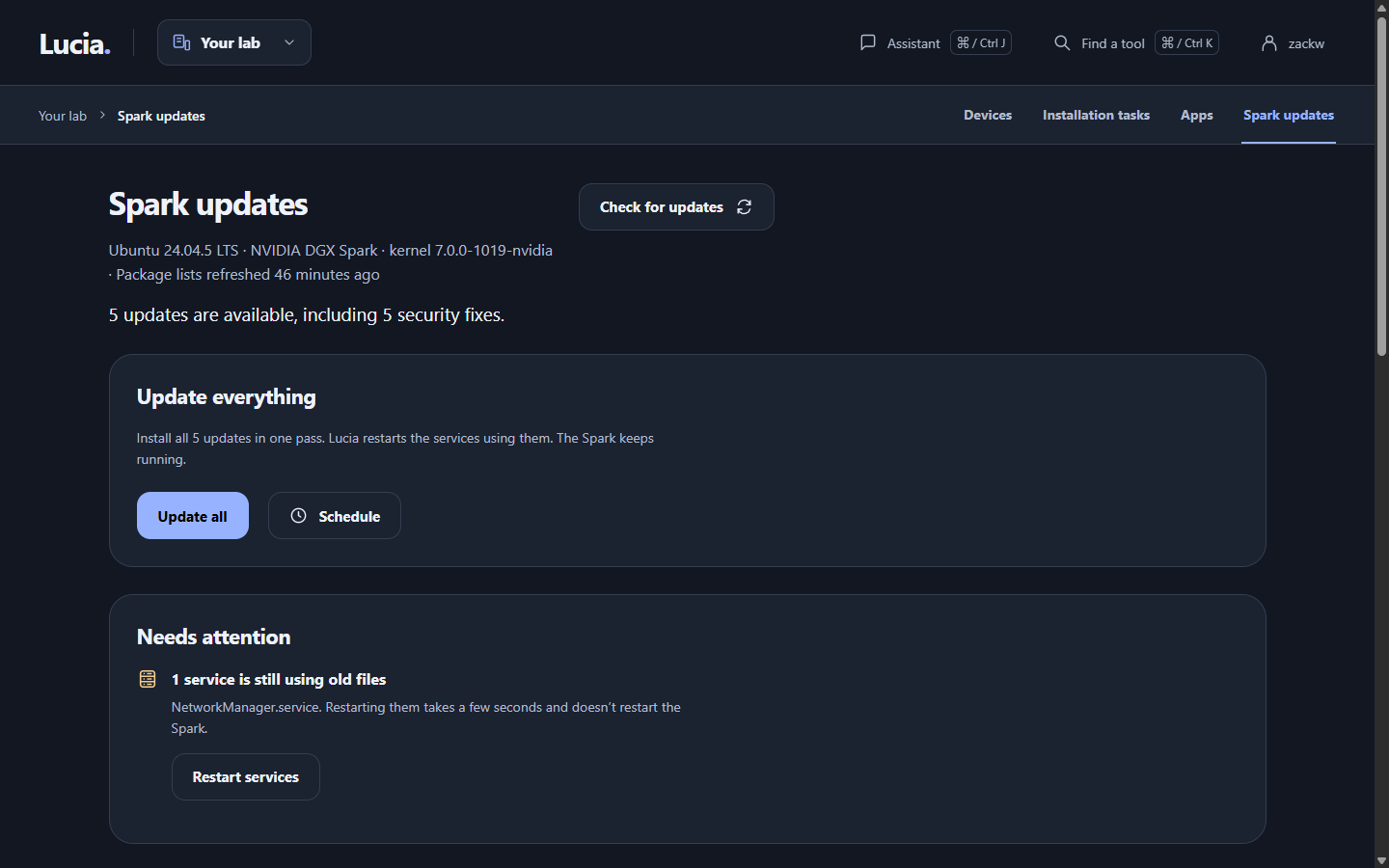
Everyday updates on top, platform updates below, each with its own install button.
What the page is for
The Spark runs DGX OS, which is Ubuntu underneath, so it gets package updates like any Ubuntu computer. Most are small. A few replace the kernel, the NVIDIA driver or the container runtime, and those can interrupt Lucia, Local AI or both.
Open Spark updates in the sidebar under Your lab. The page lists what is waiting, splits it into two groups, and installs it for you now or at a time you pick. You do not need a terminal after the first setup.
Managed servers are separate. They update through Devices, or through the assistant. This page is only for the Spark itself. See Servers.
First time: switch on the update service
Installing software needs administrator rights, and Lucia's web part deliberately has none. So a small helper runs on the Spark with those rights and does only a short list of jobs: check, install the updates you chose, restart services, restart the Spark, and repair.
Until the helper is set up, the page says Set up Lucia's update service and shows one command. Open a terminal on the Spark, signed in as yourself, and paste it:
sudo python3 ~/.local/share/lucia/bootstrap/app/tools/packages/package_worker.py install
It asks for your password once. When it prints "Lucia package updates installed", go back to the page. It notices within a few seconds.
If it says python3-apt is required, install that package first with sudo apt install python3-apt, then run the command again.
The two groups
| Group | What is in it | What to do |
|---|---|---|
| Everyday updates | Ubuntu and application packages | Safe to install while you work. New ones start ticked. |
| Platform updates | The kernel, NVIDIA driver, CUDA, DGX software, Docker, boot files and firmware | Install these on their own, ideally after hours. They are never ticked for you. |
Each row shows the package, the version it will move to and where it comes from. Small badges tell you more:
- Security means it fixes a known security problem.
- Needs Spark restart means it only takes effect after the Spark restarts.
- Restarts Lucia briefly means Docker restarts, so Lucia is offline for about a minute.
- Phased rollout and Held back by apt mean Ubuntu is releasing it slowly or needs extra packages. Installing is still fine.
Changelog on any row shows what changed in that version.
Check for updates
Press Check for updates at the top. Lucia asks the Spark to refresh its package lists, then compares what is installed. That can take a minute. Lucia does not do this on a timer, so press it when you want fresh information.
Install now
- Tick what you want, or use Select all in a group.
- Press Install … now. For platform updates the button reads Review platform install.
- Choose what should happen Afterwards:
- restart the services that use the updated files, and the Spark too if an update needs it;
- restart only those services;
- restart nothing, and decide later.
- Press Install now (Install platform updates for the platform group).
A progress bar shows the current step and package. You can close the page. The install keeps going, and you can come back to watch it.
For platform updates you also tick I understand Local AI will be unavailable and the Spark may restart. That is a real interruption. Lucia unloads your models first, so apps using Local AI get errors until the updates finish. It loads them again when the updates finish, or after the Spark restarts. If something goes wrong, it gives up waiting after three hours rather than leave Local AI off.
Lucia will not install an update that would remove other software. It stops and says which package is in the way.
Update everything
The Update everything card, with its Update all button, installs every update in one pass, platform ones included. Lucia restarts the affected services, and then the Spark if something needs it. Use it when you are around and the Spark can be offline for a few minutes.
Schedule a window
Most people pick the middle of the night. Press Schedule on any group, or on Update everything, choose a start time and save.
- The time is in your browser's time zone.
- It must be at least two minutes ahead and no more than 30 days.
- You can have one window at a time. Cancel it to plan another.
- If Lucia or the Spark was off, or busy, for more than an hour after the start time, the window is skipped and the page tells you so.
- If you scheduled "everything", Lucia installs whatever is waiting at that moment.
The page shows the result of the last window under Scheduled window.
Restarts
Needs attention appears when a restart is waiting. A typical message is "A new kernel is installed but the Spark is still running the old one."
- Restart now asks you to confirm, then restarts the Spark.
- Schedule restart does the same at a time you choose, and only if it is still needed.
- Restart services appears when some programs still use old files. It takes a few seconds and does not restart the Spark.
Restarting the Spark takes Lucia, Local AI and every app on it offline for a few minutes. Your managed servers keep running their apps, but nothing can manage them until the Spark is back. The page reconnects by itself.
Automatic security updates
Lucia does not switch on automatic updates for you. It reports what it finds: on, or installed but off, or not installed. When they are off, security fixes wait for you on this page.
When something looks wrong
| You see | What to do |
|---|---|
| Set up Lucia's update service | Run the command above once. |
| "Lucia's update service stopped responding" | It restarts on its own. If this lasts, run sudo systemctl status lucia-package-updates on the Spark. |
| "An earlier package install was interrupted" or The package database has unfinished installs | Press Repair package database. It finishes what the earlier install started and installs nothing new. |
| "Another package tool … was busy" | Something else is running apt, often the automatic updater. Wait a few minutes and try again. |
| "ran out of disk space" | Free space on the Spark's system disk, then press Repair package database. |
| "could not download" | The Spark cannot reach the package servers. Check its internet connection. |
| Local AI is paused stays for a long time | A platform update is probably still running. Check Update history at the bottom of the page. |
| A task shows Interrupted | The update service restarted during it. Run Repair package database, then Check for updates. |
Failed tasks keep the last lines apt printed, under Update history. Copy those when you ask for help.
Using the assistant
The assistant can look at updates and ask the Spark to check, and it can install them when you say so. Installing always asks you first. It never restarts the Spark on its own. It tells you when a restart is needed and leaves the choice to you. See Assistant.
Next
- Spark health shows how the Spark is doing right now.
- Local AI explains what pauses during platform updates.
- Running or debugging the update service: Spark updates (deploy).