
Containers
The Containers page lists every container, running or not, from every visible WSLc session: this app's WslcDesktop session and sessions created by the wslc CLI or other tools (see wslc system session list).
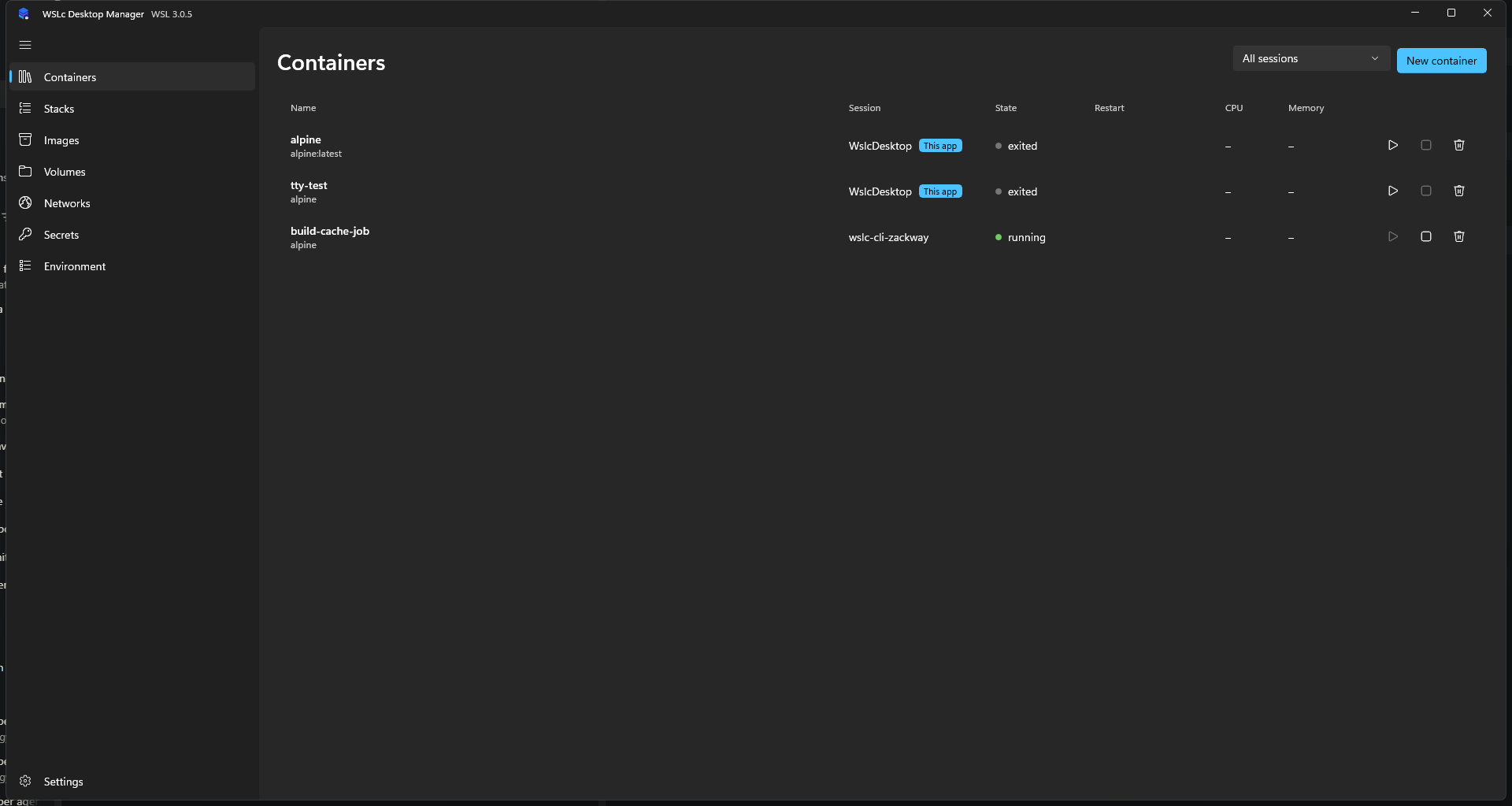
Each row shows:
- Name and the image it was created from.
- Session: the owning session. This app's session carries a This app badge. Use the filter at the top right to show all sessions or just one. Sessions that can't be read are skipped and reported in a warning bar; their last known containers stay on screen.
- State: a green dot for running, grey for exited.
- Restart: the container's restart policy and live status, such as
Restarting in 4sorCrash loop. Empty when there is no policy. - CPU and Memory: live usage for running containers, a dash otherwise.
- Row actions: Start, Stop and Delete. Buttons that don't apply to the current state are disabled.
Select a row to open the container details. Use New container (top right) to create one.
Start, Stop, Delete, logs, shell, inspect and network attach/detach always act on the session that owns the container; the Delete confirmation names that session. Some features exist only for this app's session: New container creates containers in WslcDesktop, and restart policies, telemetry and stacks don't apply to containers in other sessions (their Restart column is empty).
TIP
The list refreshes automatically, so containers started from a terminal in the same session show up without a manual refresh.