
Settings and registries
Open Settings at the bottom of the navigation.
Appearance
Choose Use Windows setting, Light, or Dark under Theme. The Windows setting follows your app color mode. By default the app also follows your Windows accent color. Turn on Use custom accent color, choose Choose accent color, pick a color or enter its hex value, then choose Apply color. Turn the switch off to follow Windows again.
Changes apply immediately across the app and persist for the next launch. Custom accent shades are adjusted for readable controls in both themes; Windows high-contrast colors remain in control when a contrast theme is enabled. Appearance preferences are saved in %LOCALAPPDATA%\WslcDesktop\settings.json, not WSLc's settings.yaml.
Terminal
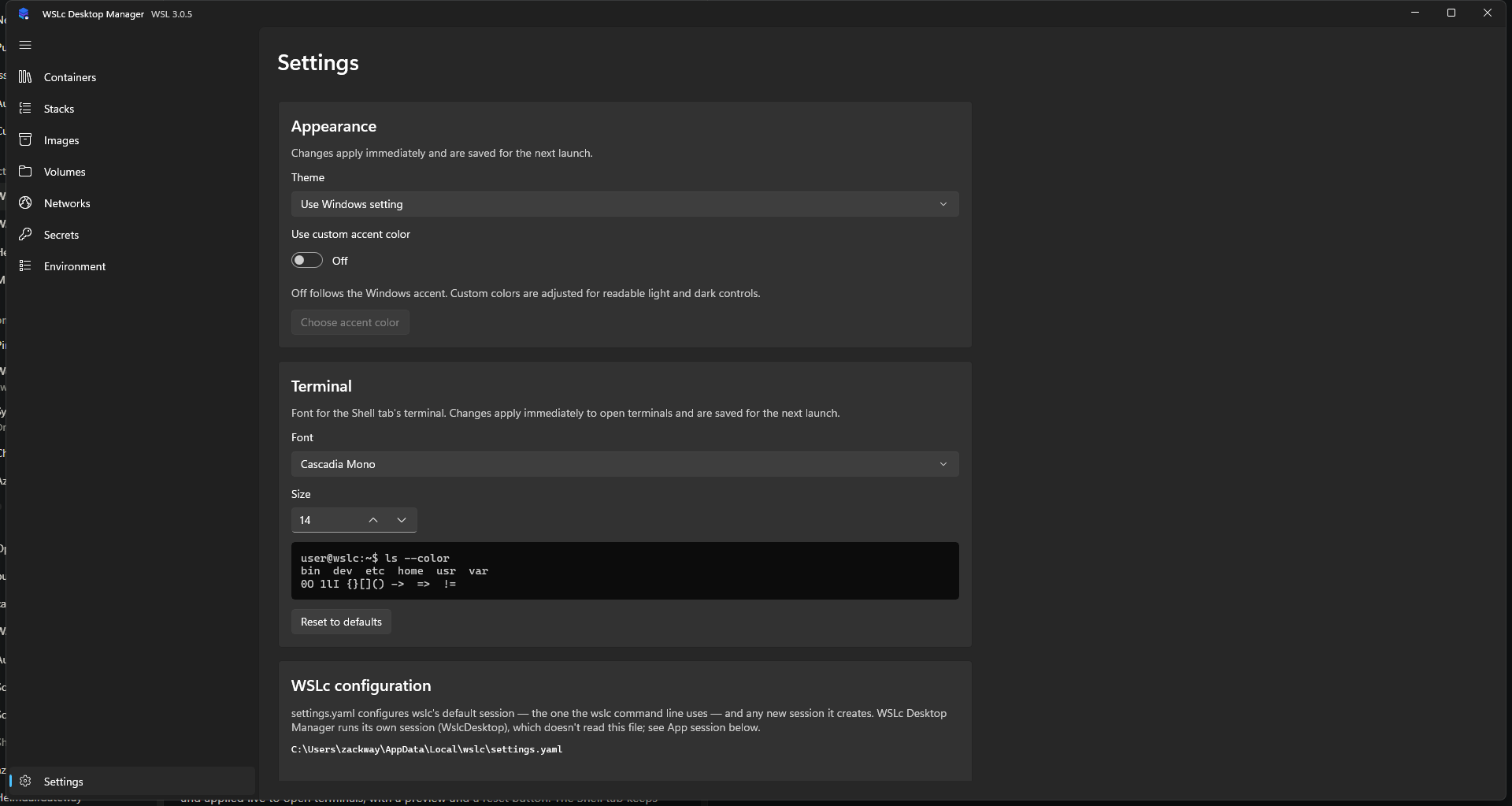
Choose the Font (installed monospace fonts such as Cascadia Mono, Consolas and Courier New) and Size (8 to 32) for the Shell tab's terminal. The preview updates as you change them, open terminals restyle immediately, and the choice is saved in settings.json for the next launch. Reset to defaults restores Cascadia Mono at size 14.
App preferences
Minimize to tray hides the minimized window from the taskbar. Close button minimizes to tray makes the close button hide the app instead of quitting. Click the tray icon to restore the window; choose Exit from its menu to quit. Both preferences apply immediately. The tray icon follows the taskbar's theme independently of the app's theme.
Start with Windows launches WSLc Desktop Manager when you sign in, minimized so it stays out of the way. If the tray is enabled (either option above) it starts hidden in the tray; otherwise it starts minimized to the taskbar. This is what keeps restart policies in effect, because they only run while the app is running. The setting shows the real state in Windows:
| How you installed | Mechanism |
|---|---|
| Installer (Velopack) | A per-user Run entry pointing at the stable launcher in the install folder, so it survives updates. |
| Portable zip | A per-user Run entry pointing at the exe's current location. Turn it off and on again if you move the folder. |
| Microsoft Store / MSIX | The package's startup task. |
If you turn the app off in Windows Settings > Apps > Startup or Task Manager, the toggle shows that Windows disabled it and links to those settings; only you can turn it back on there. Launching a second copy at sign-in never opens a second window.
WSLc configuration
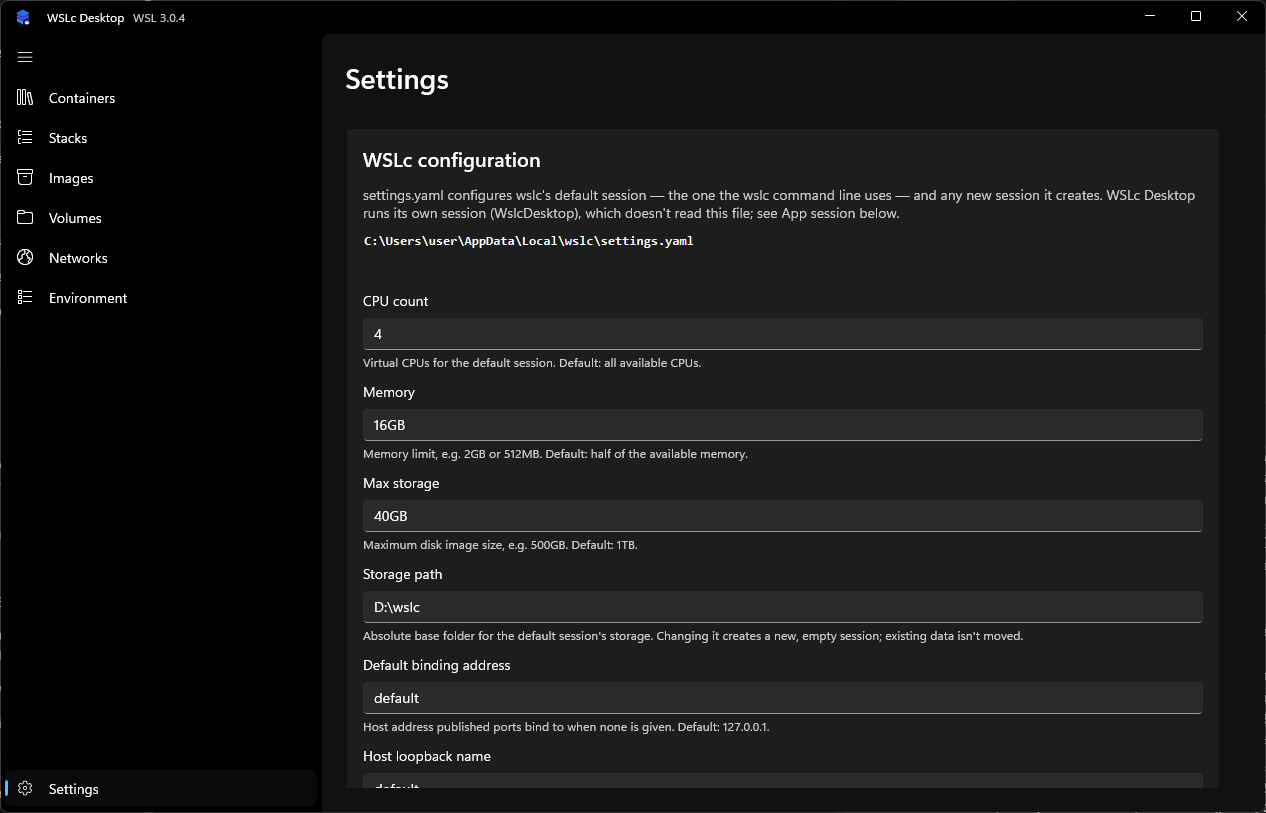
These values are saved to wslc's settings.yaml (%LOCALAPPDATA%\wslc\settings.yaml). That file configures the default session (the one the wslc command line uses) and any new session it creates. WSLc Desktop Manager runs its own session and doesn't read this file. The editor keeps your comments and unknown keys when saving.
| Setting | Purpose |
|---|---|
| CPU count | Virtual CPUs for the default session. |
| Memory | Memory limit, e.g. 2GB. |
| Max storage | Maximum disk image size, e.g. 500GB. |
| Storage path | Base folder for the default session's storage. Changing it creates a new, empty session; existing data isn't moved. |
| Default binding address | Host address published ports bind to when none is given (default 127.0.0.1). |
| Host loopback name | DNS name that resolves to the host (default host.wslc.internal, or none). |
| Idle timeout | Seconds an idle session VM keeps running (default 30). |
| Credential store | wincred or file. |
Type default to return a setting to its built-in value. Invalid values are explained next to the field.
App session
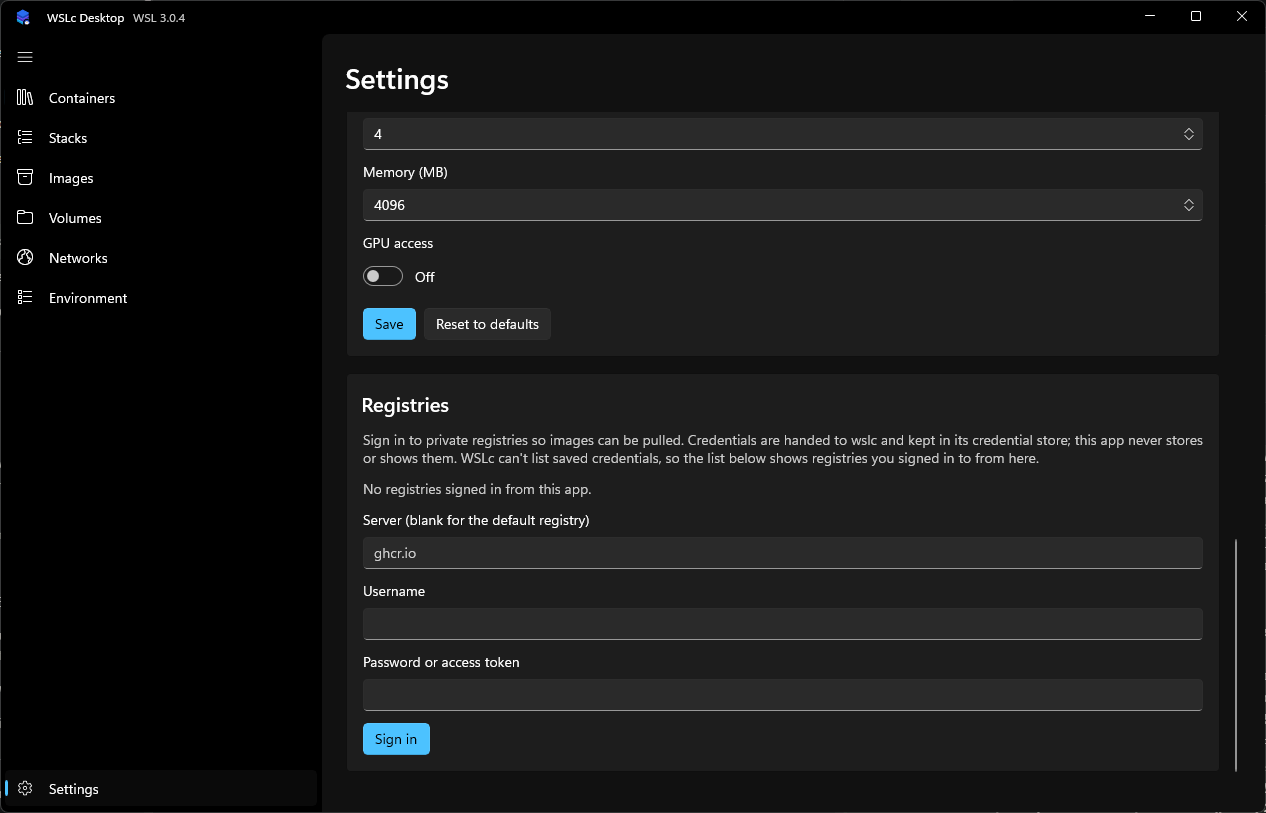
Controls the app's own WslcDesktop session: CPU count, Memory (MB) and GPU access. Choose Save, then restart the app for the change to apply. Reset to defaults restores 4 CPUs, 4096 MB and GPU off.
Registries
Sign in to private registries so images can be pulled. Enter the Server (blank for the default registry), Username and Password or access token, then Sign in. Credentials are handed to wslc and kept in its credential store; the app never stores or shows them. WSLc can't list saved credentials, so the list shows only registries you signed in to from this app (server names only).
WARNING
Use an access token with the narrowest scope that can pull, rather than a account password.