Images
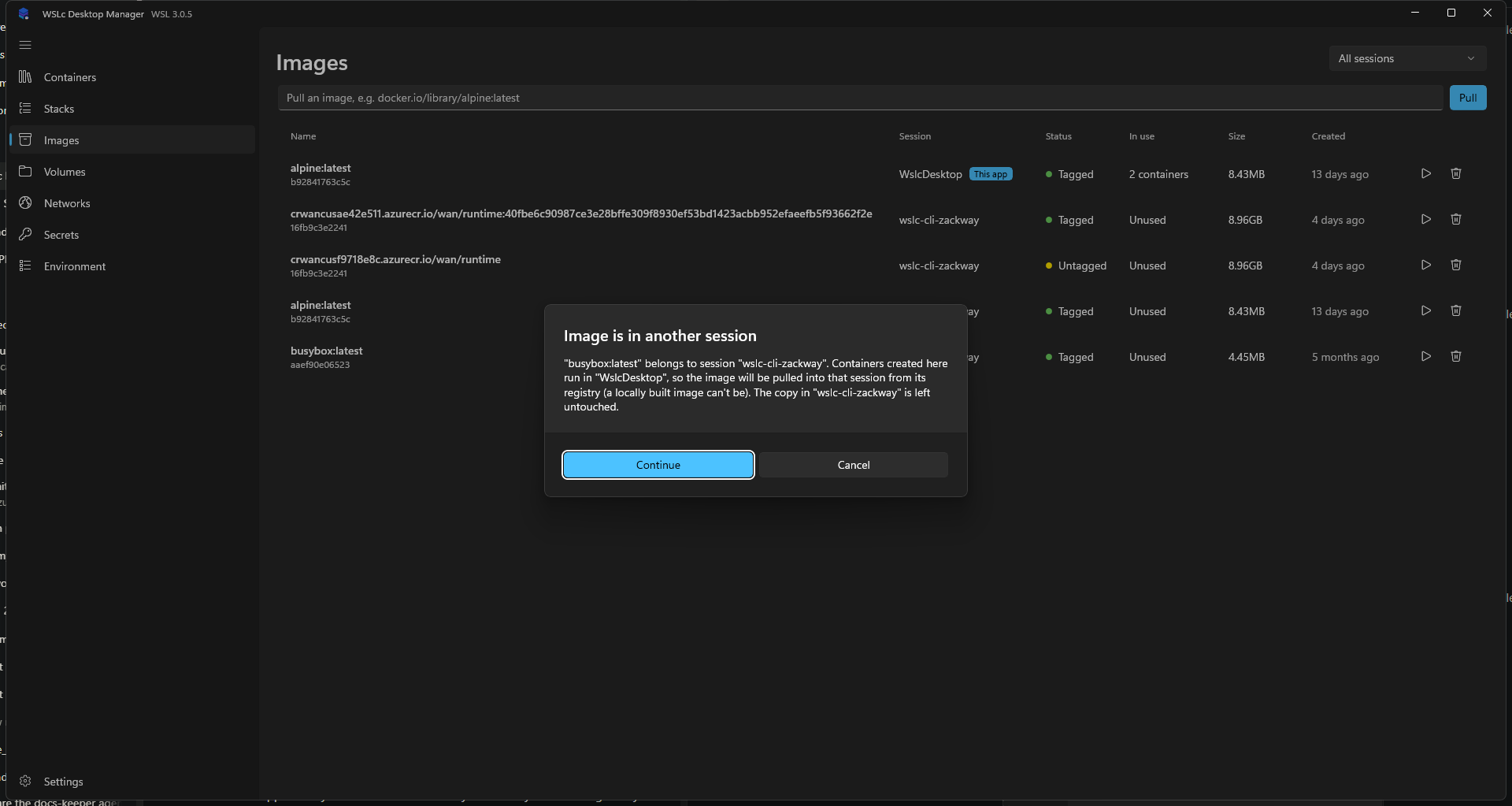
The Images page lists local images from every visible WSLc session with their owning session, ID, tag status, how many containers use them, size and age. WSLc keeps a separate image store per session, so an image pulled with the wslc CLI (default session wslc-cli-<user>) is a different image from one in this app's WslcDesktop session.
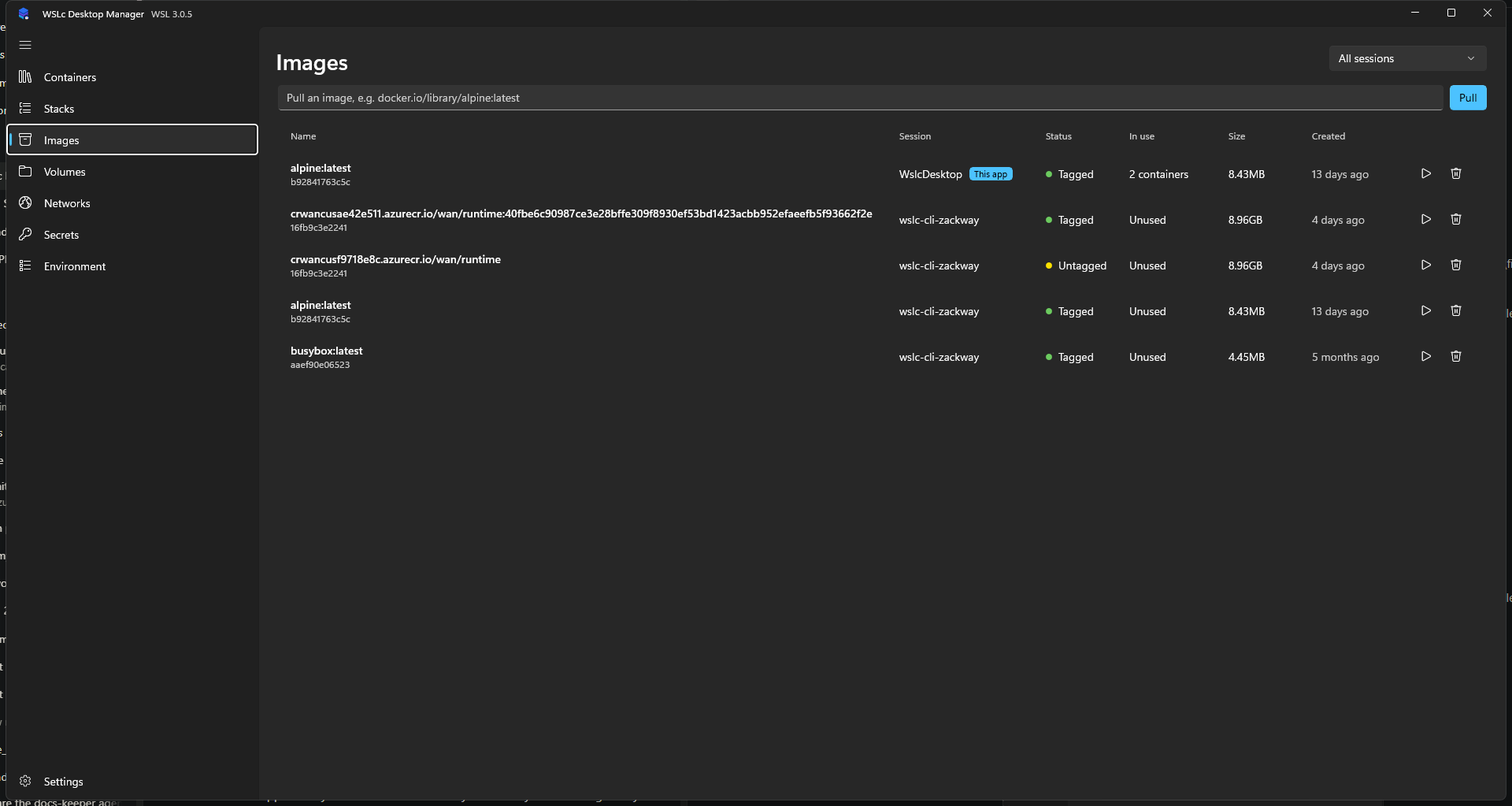
- The Session column shows the owning session; this app's session carries a This app badge. Use the filter at the top right to show all sessions or just one.
- Sessions that can't be read are skipped and reported in a warning bar; their last known images stay on screen. Other sessions refresh every 10 seconds, this app's session every 3.
- Pull an image by typing a reference such as
docker.io/library/alpine:latestin the box at the top. It is pulled into this app's session. Private registries need a sign-in. - Run (the play button on a row) opens the New container dialog with that image already filled in. Untagged images use their image ID. Set the name, ports, mounts and environment (including
${secret:NAME}tokens), then Create. Afterwards you can jump straight to the new container's details. Containers are always created in this app's session, so for an image owned by another session the app asks first and then pulls the same reference into this app's session (the original is left alone). Untagged images and locally built images can't be pulled, so tag or push them first, or run them withwslc --session <name>. - Delete removes the image from the session that owns it.
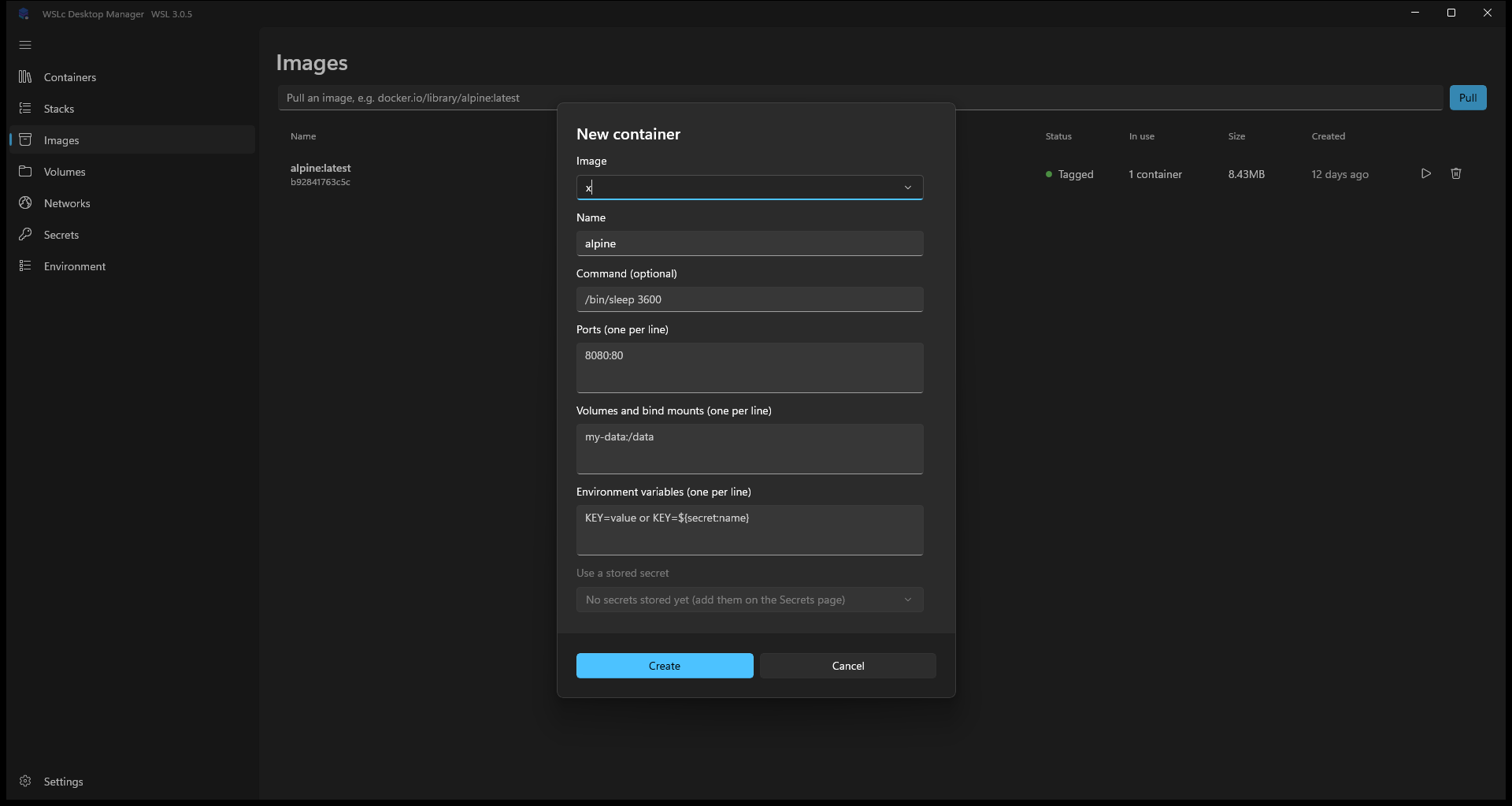
Image details
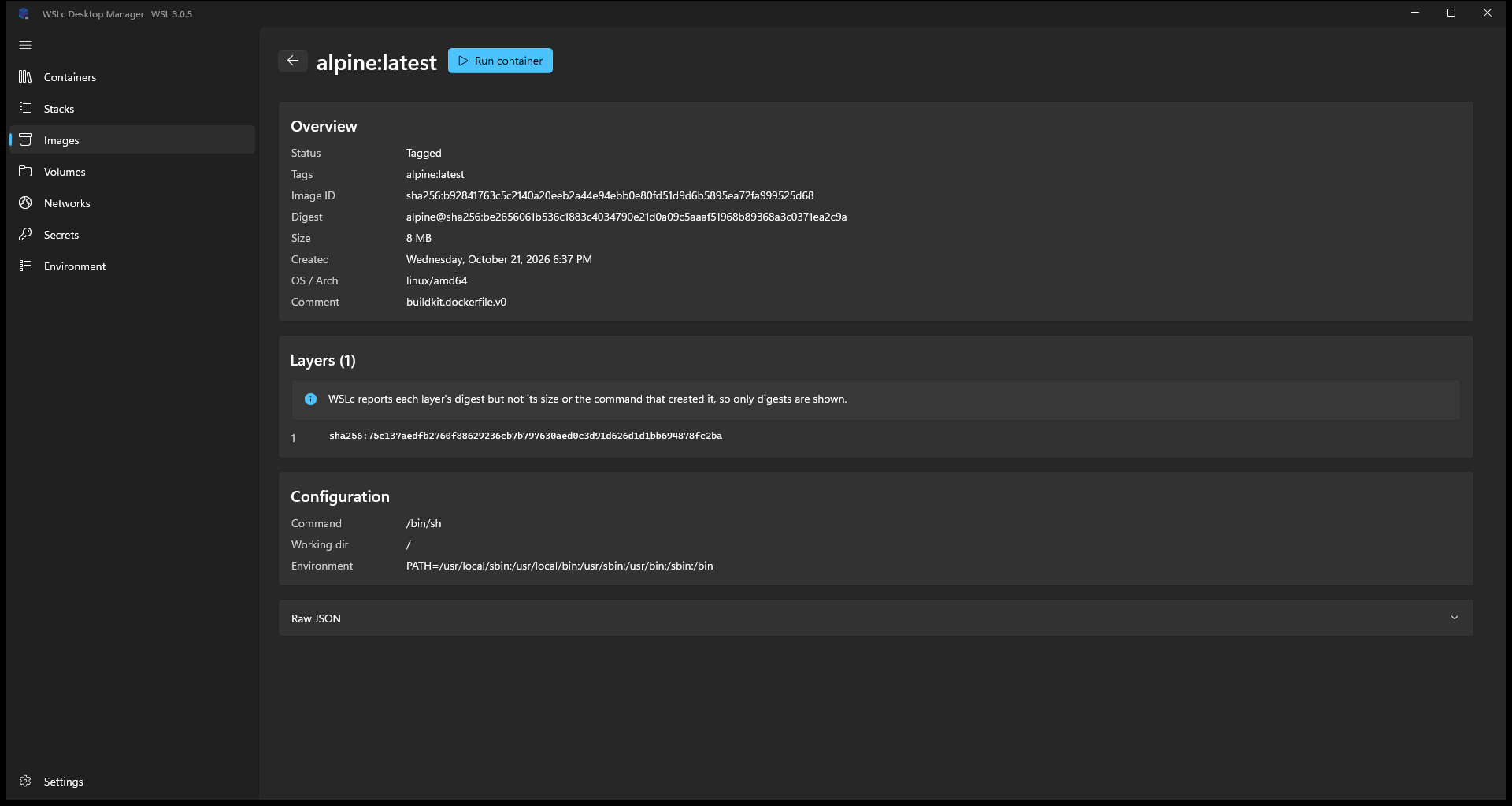
Select an image to see its overview (session, tags, ID, digest, size, OS/architecture), its layers and its configuration. Run container at the top opens the same pre-filled New container dialog.
INFO
WSLc reports each layer's digest but not its size or the command that created it, so only digests are shown.