
Getting started
Prerequisites
- Windows 11 22H2 (build 22621) or later. The app builds against SDK 10.0.26100 but declares minimum Windows version 10.0.22621.0.
- WSL with container support (WSLc). The app shows your WSL version in the title bar once it connects.
wslc.exeon yourPATH. The WSLc API can't enumerate containers or sessions, so the app lists them throughwslc.exeand performs everything else through the API.
TIP
Run wslc --help in a terminal. If it prints the command list, the app can find it.
Install
Download WslcDesktopManager-win-x64-Setup.exe (or -arm64) from the Releases page and run it. It installs per user and updates from Settings → Updates. The installer is unsigned until a certificate is available, so Windows SmartScreen may warn: choose More info → Run anyway. Prefer no installer? Extract the portable zip and run WslcDesktop.exe (no auto-update). WSLc is still required, and app settings and data remain under %LOCALAPPDATA%. No release yet? Build from source.
The MSIX packages and app bundle on GitHub are unsigned Microsoft Store submission files, not sideload installers. Microsoft signs the packages after certification; install through the Microsoft Store once the listing is live, or use the installer.
First run
- Launch WSLc Desktop Manager. It starts its own WSLc session named
WslcDesktop, separate from the default session used by thewslccommand line. - If the WSLc components are missing, the app offers an Install components button. Use it, then Retry.
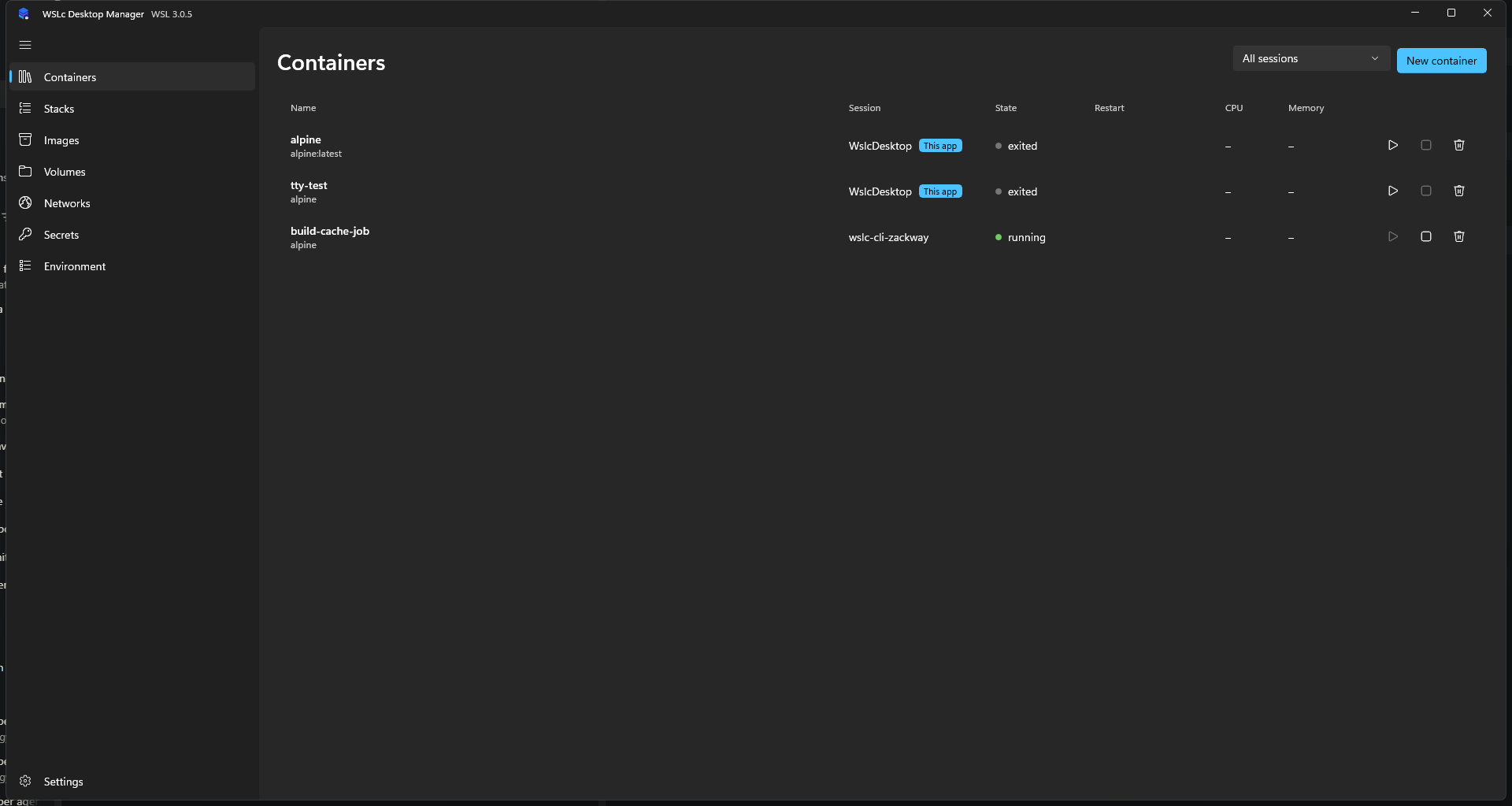
- The Containers page opens. Anything you create here lives in the
WslcDesktopsession.
Separate sessions
Containers started with the wslc CLI's default session don't appear in the app, and vice versa. Use wslc --session WslcDesktop ... to work with the app's containers from a terminal. See Environment.
Navigation
The left navigation lists Containers, Stacks, Images, Volumes, Networks and Environment, with Settings at the bottom. Each has a walkthrough.